Top 10 Android Settings to Turn Off and Save Data in Ghana
Stop wasting bundles. Learn the 10 hidden Android settings draining your data and how to turn them off to save money in Ghana.

By Edem Kwame
Published 3 min read
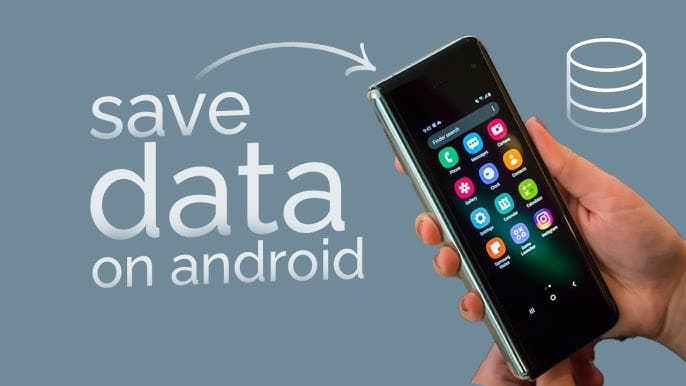
For many Ghanaians, mobile data has become one of the most expensive monthly expenses — and yet, bundles continue to vanish faster than expected.
What most people do not realise is that Android smartphones run several background processes and automatic features that quietly consume data without warning.
To help you take full control of your usage, here are 10 essential Android settings you should turn off immediately to protect your data and make every cedi count.
1. Disable Background Data for Apps
Certain apps, including social media platforms, continue to use data even when you are not actively using them. Disabling background data ensures apps only consume data when opened.
How to do it:
Settings → Network & Internet → Data Usage → Mobile Data Usage → Select App → Disable “Background Data”
Also readUniversity of Ghana to make AI training mandatory for all students
2. Turn Off Auto-Play on Social Media Apps
Auto-play videos on Facebook, Instagram, TikTok and X (Twitter) can drain data within minutes.
Disable autoplay:
Facebook: Settings → Media → Turn Off Auto-Play
Instagram: Settings → Accounts → Cellular Data Use → Data Saver → On
TikTok: Settings → Data Saver → On
3. Switch Off Auto-Sync
Apps like Gmail, Google Drive, Photos and Calendar constantly sync data in the background. Turning off auto-sync prevents unnecessary data exchange.
How to do it:
Settings → Accounts → Auto-sync data → Off
4. Disable Wi-Fi & Bluetooth Scanning
Even with Wi-Fi and Bluetooth turned off, Android devices continue scanning for nearby networks and devices, consuming data indirectly.
Turn it off:
Settings → Location → Wi-Fi Scanning → Off
Settings → Location → Bluetooth Scanning → Off
Also readChinese humanoid robot breaks 100m record
5. Stop Google Play Store Auto-Updates
Automatic app updates can consume hundreds of megabytes, especially for large apps like WhatsApp, YouTube and gaming platforms.
How to do it:
Google Play Store → Profile → Settings → Network Preferences → Auto-update apps → Don’t auto-update.
6. Restrict Background App Refresh
Apps refresh content in the background to send notifications or update feeds. Restricting this feature dramatically reduces data usage.
How to do it:
Settings → Apps → Select App → Mobile Data & Wi-Fi → Disable “Allow Background Data Usage”.
7. Remove Apps Allowed Unrestricted Data Usage
Some apps are automatically allowed to bypass Data Saver mode, consuming data freely in the background.
Review and disable:
Settings → Network & Internet → Data Saver → Unrestricted Data → Turn off unnecessary apps.
8. Turn Off Non-Essential App Notifications
Every notification, especially from media apps, shopping apps or browsers, uses data to refresh content before alerting you.
How to do it:
Settings → Apps → Select App → Notifications → Off
9. Stop Google Photos Backup on Mobile Data
Automatic photo and video backups quietly use large amounts of data.
Disable mobile backups:
Google Photos → Profile → Photos Settings → Backup → Mobile Data Usage → Off
10. Adjust Streaming Quality on YouTube, Netflix, Spotify and Boomplay
High-quality streaming consumes significant data. Reducing the default quality settings ensures your bundles last longer.
Recommended settings:
YouTube: Settings → Video Quality Preferences → Set to Data Saver
Netflix: App Settings → Video Quality → Low/Medium
Spotify/Boomplay: Reduce streaming quality
Edem Kwame
Chief Editor
Edem Kwame is a staff journalist at GH News Media, where he covers news, sports, politics and current affairs with a sharp focus on Ghanaian and African football.
More from Edem Kwame